
Sometime around the age of 15 or so, I realized I had difficulty understanding verbal communication. My sense of hearing is just fine, it’s just that sometimes the words coming out of people’s mouths don’t translate into something that has meaning in my head. This happened in the classroom, with my friends, and when I watched movies or TV. I couldn’t solve the issue in my ‘real life’ interactions, but captions did the trick for me for entertainment. No more missed punch lines, no more confusion around key plot points, no more rewinding to try to hear the words multiple times.
As far as I know, I don’t have a hearing disability - but the ability to read the captions of what my teachers were saying would have greatly improved my learning capability throughout school.
And it’s not just me. A national study conducted in 2015 showed that even among students who do not report having disabilities, 32.5% of them use captions ‘always’ or ‘often.’ Even more impactful, an astounding 87.7% of students without disabilities and 90.4% of students with disabilities find captions to be ‘extremely,’ ‘very,’ or ‘moderately,’ helpful in their learning.
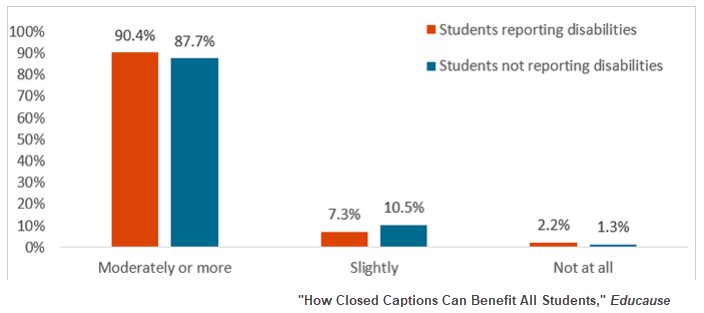
The reasons they listed as to why captions are helpful are the same ones I would identify for myself - captions help me focus, help me understand what someone is saying, and help me retain information.
Obviously, captions in ‘real life’ are not available (yet), but instructors can improve their students’ learning by ensuring captions are available on all live and/or recorded videos. This is easy to do and does not require an instructor to type captions.
If Presenting on Zoom
If you are presenting via Zoom, you can enable live captions with just a few clicks. If you are Zooming on UD's platform (udayton.zoom.us), this is enabled already for you by default.
- Log into the Zoom web portal.
- Go to Settings > Meeting > In Meeting (Advanced)
- Toggle on: Automated Captions.
Enabling live captions does not mean the captions will show up immediately for all participants, but it does mean that those who want captions now have the ability to opt into seeing them. It may be helpful to make this step of enabling captions a part of your regular Zoom setup routine. I also suggest telling students at the beginning of your class that they have the ability to see the captions and transcript and to remind you to enable the captions if you forget to do so. Students can request the live captions themselves through the Zoom interface.
If Creating a Pre-Recorded Video
If you are recording a video outside of Zoom (via Snagit, Camtasia, your phone’s camera or webcam, etc), we recommend uploading the video to either Kaltura or YouTube to ensure your video will be captioned.
All videos uploaded to Kaltura are captioned automatically.
YouTube is a bit cagier about how accurate their captions are, but just as an observer, I’d say they have vastly improved over the past few years.
If Creating a Pre-Recorded Video
I know what you’re thinking as you’re reading this. “These automatic captions are a step in the right direction, but they’re just not accurate enough. What do I do?”
Legally, providing highly accurate captions - if not perfect - is what is required of our videos. In 2014, the FCC instituted a rule that closed captioning for TV must be accurate to the point where “captions must match the spoken words in the dialogue.” In the education setting, we also have an obligation to provide accurate captions.
I personally recommend and usually follow for myself the following guidelines:
- I make sure all my videos have auto-generated captions at a minimum by uploading videos to YouTube or Kaltura.
- If I know my video is of critical importance or will be viewed for learning materials, I will take the time to edit the captions or transcript to improve accuracy.
- If I were teaching a class, I would invite my students to let me know of any accommodations they may require. If higher-accuracy captions are required, I would work with the Office of Learning Resources to find out how to support those student(s).
The Captioning Conclusion
This is one accessibility tip that really just requires awareness on the part of the instructor since the technicalities of captioning are handled by our video services. You may want to consider enabling live captions in Zoom, but it’s far more important to just invite students to let you know of any accommodations that may help them better learn in your class.
My final thought - if you ever find yourself lost in a movie or TV show . . . just give the captions a try. Literally everyone I’ve ever “forced” to watch something with me with captions on has become a caption convert and now can’t watch anything without them. You will soon understand just how vital captions are for improved comprehension.
If you have any questions at all about captioning or any other accessibility concerns, please contact the Center for Online Learning at onlinelearning@udayton.edu.
Check out the other articles in our Accessibility Tip series: